1. Double-click the Tera Term icon
If at any time you get the dreaded “NO CARRIER” message, it means the signal was dropped and you will have to start over. If you take “too long” between giving keystrokes to the modem you will get the NO CARRIER message. So work fairly quickly to avoid this.
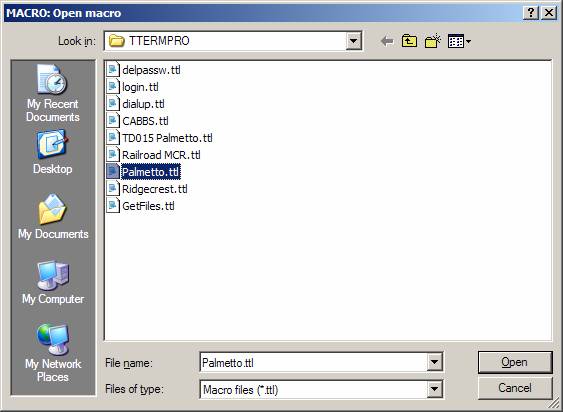
2. From the Control menu, select Macro

3. Select the desired macro from the list and then click Open.
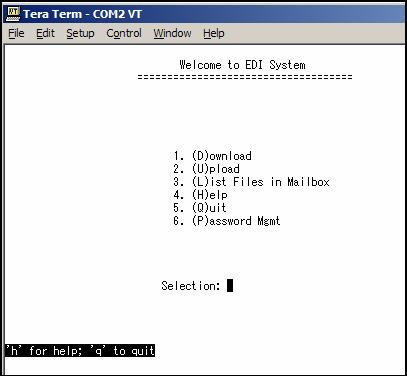
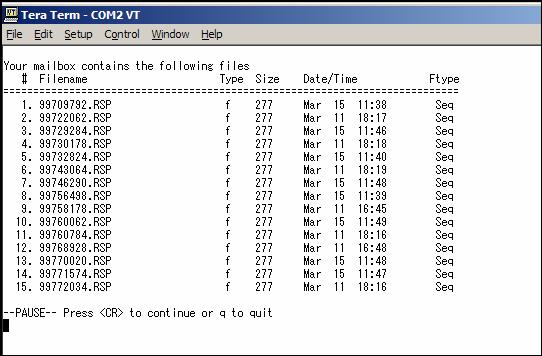
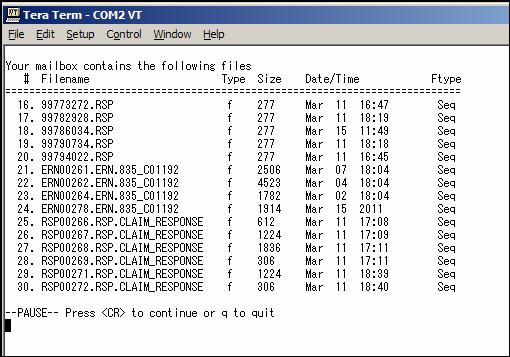
4. To see a list of the files enter L and then enter.
5. If there are multiple pages you may have to keep hitting the Enter key. (They call it CR for Carriage Return)
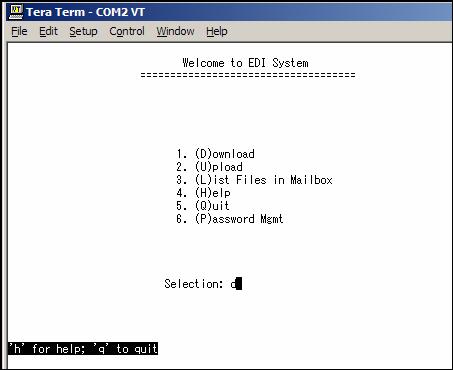
6. To download file from Palmetto enter D and then the Enter key.
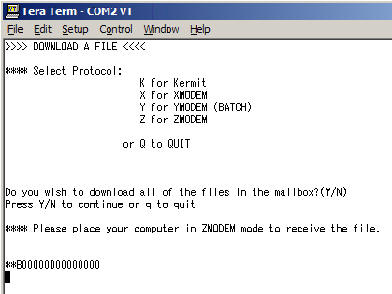
7. Enter Z for ZModem and then enter Y to the "Do you wish..." question.
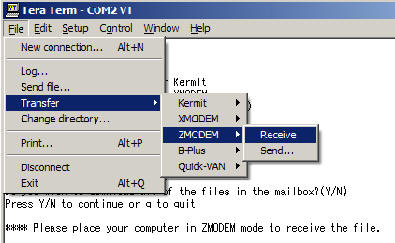
8. From the File menu, select Transfer > ZMODEM > Receive
9. If this was successful, skip to step 14. Otherwise if you get the message below or some other failure, it is likely you have a file that is too big for ZModem. In this case try again but this time use XModem to pick up the large file. You can then use ZModem to pick up the remaining smaller ones.

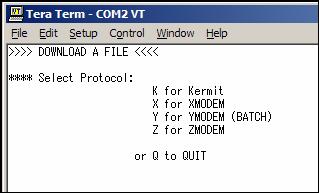
10. Enter X for XModem (no Enter key this time)
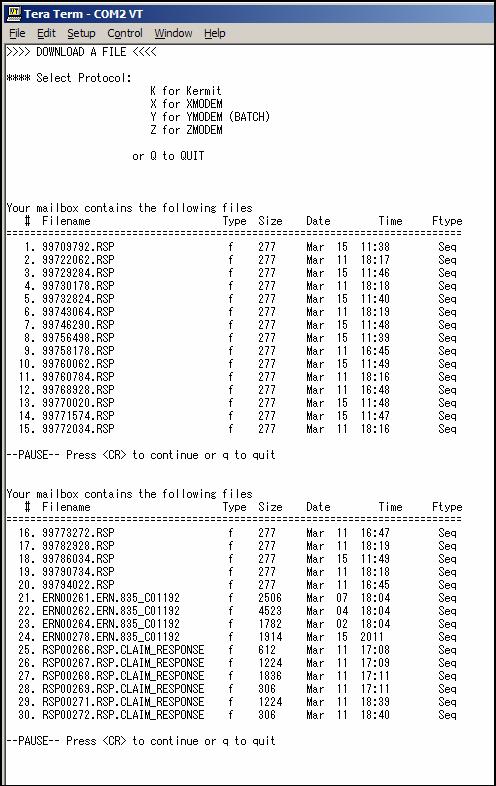
Now you must pick the number of a file to download. CR means Carriage Return (Enter key)
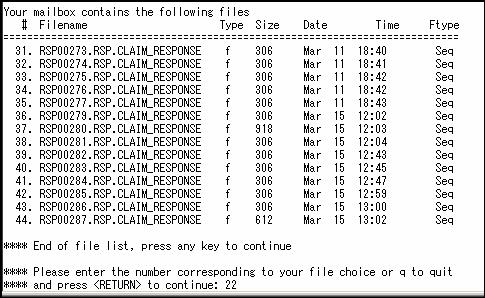
11. When you reach the bottom of the list, press Enter once more and then the modem will ask for your file number choice. In this example I entered 22 and then pressed the Enter key.
Now you must put your modem into XModem Receive mode.
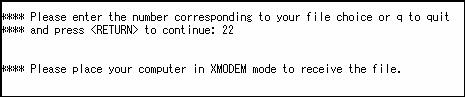
12. From the File menu select XMODEM > Receive as shown below.
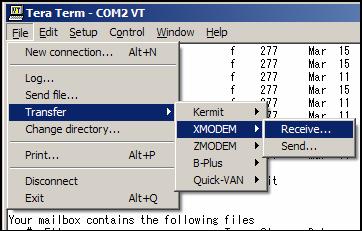
13. Fill in the Receive dialog box. Choose a directory for your file. You may want to put the file on your desktop and drag it into the correct folder later. If you forget to do this step, the files will end up in the directory with Tera Term. Make up a file name followed by .txt then press the Open button.

If you didn't take too long to complete this part, the files will start coming over. If there is no response, you probably took too long and may have to start over.
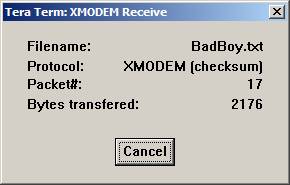
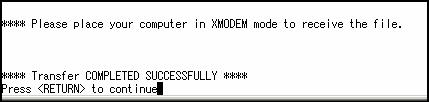
14. Hopefully you will see the success message once the file(s) has transferred.. Press the Enter key (they are calling it the Return key now)
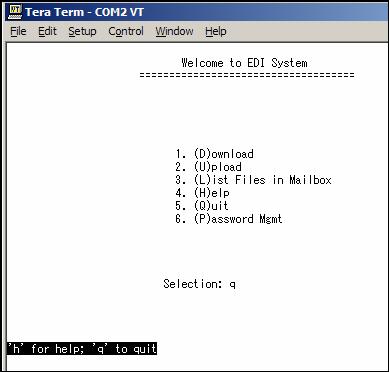
15. Type Q for Quit and then press the Enter key.
14. Celebrate!!!
1. Open the file with Notepad. Always use Notepad, Word will add hidden characters.

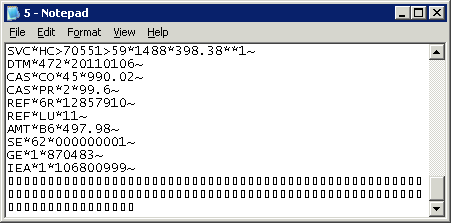
2. Scroll to the bottom of the file and check that the last line begins with IEA and ends with a ~
The file shown below has garbage below the tilde (~), so delete the garbage and save the file. The garbage below looks like little boxes, but garbage can look like railroad tracks or even happy faces. But no matter what it looks like, just delete anything that is after the last tilde (~). After you delete the garbage, click the closebox X at the top right of the Notepad window and then Notepad will ask you if you want to save changes. Click the Yes button.
3. Make sure Microsoft is not hiding the file extensions. You can skip this step if you are sure the file extensions are not hiding.
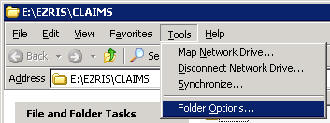
A. Click Tools from the main menu and select Folder Options. See screenshot below.
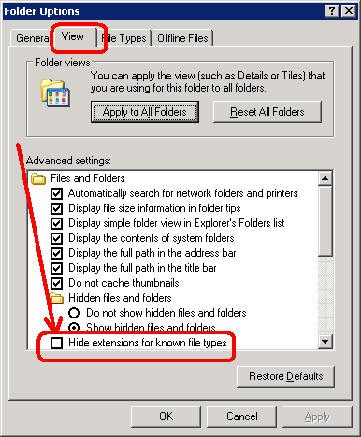
B. Click the View tab and make sure that the checkbox for Hide extensions for known file types does NOT have a checkmark. We do not want to hide these files extensions! Click the OK button.
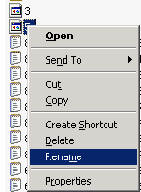
4. Right-click the file you want to rename and select Rename from the menu.
5. Rename the file to something like ERN20110317.txt. As long as the name ends in .txt you can name it anything you want. (Microsoft will have something to say if you use some special characters like / , ; or some other characters.) It's safest to use just numbers and/or letters. The sample I used of ERN20110317 represents the date of 3/17/2011.